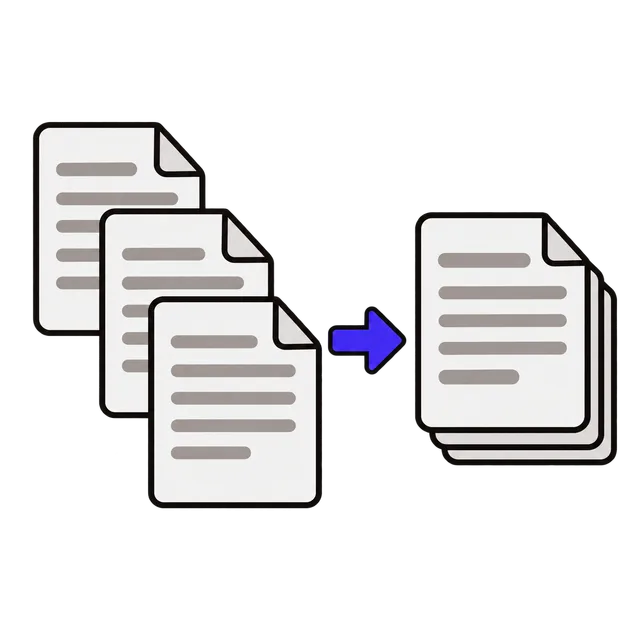
How to use
- Choose Merge, then drop your PDF files on the box or tap it to pick them. You can add files several times.
- Put the files in order with the up and down arrows. The number on each row is its place in the finished PDF.
- Tap Merge & Download. One file named merged.pdf is saved to your Downloads folder.
- To take pages out of a PDF, choose Split, tap the page thumbnails you want (or type a range such as 1, 3, 5-10) and tap Extract & Download.
Merge PDF files for free, without uploading them
Most online PDF sites send your files to their servers to do the work. This one does the merging inside your browser, so tax forms, medical records, bank statements and signed contracts never leave your computer or phone. There is no sign-up, no watermark on the result and no daily limit.
The pages are copied as they are, not re-scanned or compressed, so text stays sharp and searchable. Fillable forms are best filled in and saved before merging, as form fields may not stay editable. Very large files take longer on an older phone; on a computer, a few hundred pages is fine.
Everyday uses
Put a scanned form and its supporting pages into one attachment, as many insurance, Medicare and benefits portals accept only a single file. Combine monthly statements for your accountant, gather the receipts for a claim, or join the chapters of a document someone sent in separate parts.
Split does the opposite: save just the signature page, send only the pages that matter instead of a 40-page file, or remove a page with personal details before you share a document.
| You want to | Use | Tip |
|---|---|---|
| Send several PDFs as one attachment | Merge | Order them before you merge |
| Keep only some pages | Split | Type 2-4 for pages 2, 3 and 4 |
| Print on both sides with a one-sided printer | Duplex Print | Print the odd pages first |
Double-sided printing on a one-sided printer
The Duplex Print tab makes two files: the odd pages, and the even pages ready for the back. Print the odd pages, put the stack back in the tray, then print the even pages. Printers stack paper differently, so the tool offers the even pages in both orders; print the odd pages first, look at which page is on top, and pick the matching file.
Frequently asked questions
Is it safe to merge PDFs here?
Yes. The files are read and combined by your own browser, and nothing is uploaded. Close the tab when you are done and nothing is left behind on the page.
Why won't my PDF merge?
The most common reason is a password-protected PDF. Open it in your PDF reader, enter the password, save or print it as a new PDF, and add that copy instead. A damaged download can also fail; download the file again.
Can I change the order of the files?
Yes. Use the up and down arrows next to each file before you merge. The finished PDF follows the order shown on screen.
Does it work on an iPhone or Android phone?
Yes. Tap the box to choose PDFs from Files (iPhone) or your Downloads folder (Android). The merged PDF is saved where your browser keeps downloads.