How to use
- Drop an image onto the box, click it to browse, or press Ctrl+V (Cmd+V on a Mac) to paste a screenshot. JPG, PNG, WebP, GIF and BMP files work.
- The scanner finds the barcode in the image and shows the decoded value together with its format, for example EAN-13 or QR CODE.
- Click Copy to put the value on your clipboard, or Scan another to try a different image.
Supported barcode formats
Decoding uses the open-source ZXing library, which reads the common 1D (linear) and 2D barcodes. You do not need to pick the format first; it is detected automatically.
| Type | Formats | Where you see them |
|---|---|---|
| Retail 1D | UPC-A, UPC-E, EAN-13, EAN-8 | Product packaging, books (ISBN as EAN-13) |
| Industrial 1D | Code 128, Code 39, Code 93, ITF, Codabar | Shipping labels, warehouse bins, library cards |
| GS1 DataBar | RSS-14, RSS Expanded | Fresh produce and coupons |
| 2D | QR Code, Data Matrix, PDF417, Aztec | Links, driver's licenses, boarding passes, parts marking |
Scanning on iPhone or Android
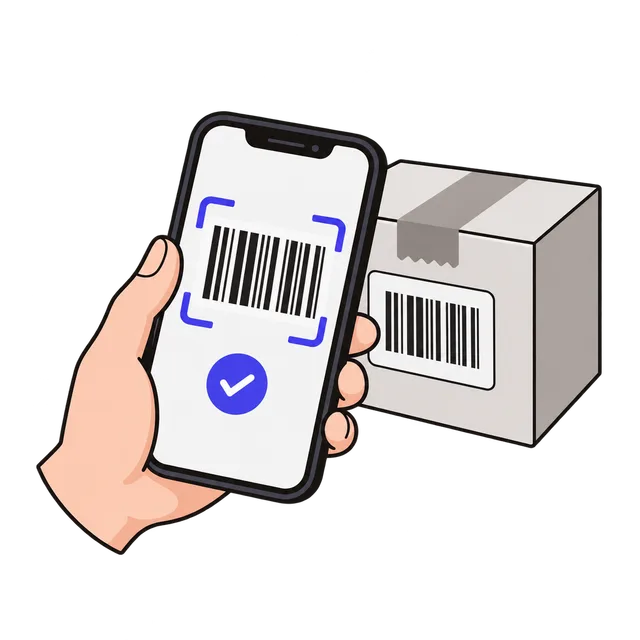
This scanner reads images rather than a live camera feed. On a phone, tap the box and your browser offers to take a photo or pick one from your library, so it works as a free barcode scanner on iPhone and Android without installing an app.
Taking the photo first also makes it easier to scan a barcode on a screen, in an email, or in a PDF: take a screenshot and paste or upload it.
When a barcode will not scan
Most failures come from the photo, not the barcode. Fill most of the frame with the barcode, hold the camera parallel to the label, and avoid glare from glossy packaging. Blurry or very small images lose the thin bars, so move closer instead of zooming digitally.
The scanner returns one barcode per image. If a label has several, crop the image to the one you need. For long 1D barcodes such as Code 128, keep the blank margin on both sides of the bars inside the photo, because the decoder uses it to find where the code starts and ends.
What the decoded number tells you
A UPC or EAN number is a GTIN: it identifies a product and the company that registered it with GS1, but it does not contain the price or a description. To look up who owns a GTIN, use GS1's Verified by GS1 service. QR codes often contain a web address, so check the decoded link before opening it.
Frequently asked questions
Is this barcode scanner free, and is my image uploaded?
It is free with no signup. The image is opened and decoded inside your browser, so it is never uploaded to a server. You can even disconnect from the internet after the page loads and keep scanning.
Can it read QR codes as well as barcodes?
Yes. QR Code, Data Matrix, PDF417 and Aztec are read the same way as linear barcodes, and the result shows which format was found.
Can it scan several barcodes in one picture?
It returns the first barcode it finds. To read more than one, crop the image around each barcode and scan them one at a time.
Why does the scanner say no barcode was found?
The image is usually too blurry, too small, low in contrast, or cut off at the edges. Retake the photo closer and straight on, in even light, and make sure the whole barcode with its blank margins is visible.
What is the difference between UPC-A and EAN-13?
UPC-A has 12 digits and is used mainly in the US and Canada; EAN-13 has 13 digits and is used elsewhere. A UPC-A code is an EAN-13 with a leading zero, so both identify the same kind of product number.